Android eSIM setup can look slightly different depending on your phone brand, which trips up a lot of first-time users switching between a Samsung, Pixel, or other manufacturer’s menu layout. This article will help you to understand how to activate a GleeSim eSIM across major Android devices and troubleshoot the most common setup issues. After developing a complete understanding, you can make a better decision on your setup before departure.
Most recent flagship models from Samsung, Google Pixel, and several other major brands support eSIM, though budget models sometimes do not include the hardware, so checking your specific model before your trip saves a headache at the airport.
eSIM provisioning: the backend process that assigns a digital SIM profile to your device once activated, replacing the manufacturing and swap process of a physical SIM.
Samsung phones typically house the eSIM option under Connections, then SIM Manager, while Google Pixel devices use a more streamlined Network and Internet menu. Both processes accomplish the same result, just through slightly different menu paths, which is worth knowing in advance so you are not searching blindly during activation.
If your Android device fails to detect the QR code, restarting the phone before rescanning often resolves temporary software glitches, and requesting the manual activation code from GleeSim on WhatsApp works as a reliable backup if scanning continues to fail.
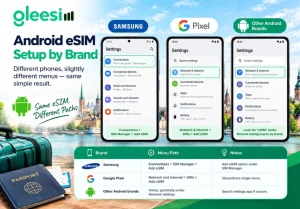
| Brand | Menu Path | Notes |
| Samsung | Connections, SIM Manager | Add eSIM option under manager |
| Google Pixel | Network and Internet, SIMs | Streamlined single menu |
| Other Android brands | Varies, generally under Network settings | Search settings app if unsure |
Does this work the same way across Samsung and Pixel phones? The exact menu wording varies slightly by brand, but the underlying scan-and-activate process is the same.
Can I add a second eSIM if I already have one installed? Most modern Android phones support multiple eSIM profiles, though only a limited number can be active for data at once depending on the device.
What if my Android phone does not show an eSIM option at all? This usually means the specific model does not support eSIM hardware, in which case a physical SIM remains the alternative.
Is there a difference in data speed between eSIM and physical SIM on Android? No, speed depends on the network and location, not on whether the SIM is physical or digital.
Can I switch which SIM handles data after activation? Yes, most Android phones let you set a preferred data SIM under your dual SIM or SIM manager settings at any time.
Check compatible models on the Android device page or buy your plan at offers.gleesim.com.