You are in Karbala or Baghdad with a limited data bundle, and your WhatsApp is quietly burning through it in the background. Photos auto-downloading. Videos loading before you tap them. A group chat of fifty pilgrims sending voice notes every two minutes.
By the time you notice, half your data is gone and you still have four days of travel ahead.
This article will help you understand exactly how to control your Iraq data usage through WhatsApp’s own built-in settings, your phone’s native data tools, and USSD codes from Iraqi carriers, all without downloading a single extra app. After developing a complete understanding, you can make a better decision on how to stretch your data bundle from landing in Baghdad to your last day in Najaf without running dry.
WhatsApp is the communication backbone of every organised Ziyarah trip. Your caravan group uses it. Your tour operator uses it. Your family back home expects daily voice notes and photos. That is not going to change.
What can change is how WhatsApp uses your data in the background when you are not actively looking at your phone. Left at default settings, WhatsApp automatically downloads every photo, audio file, and document the moment it arrives, regardless of your data situation. On a limited Iraqi data bundle, this default behaviour is genuinely expensive.
The good news is that every setting you need to fix this is already inside WhatsApp itself or inside your phone’s native settings. Nothing extra to install. Not one additional app.
This single change alone saves more data than any other adjustment you can make. It is the first thing to do before your flight.
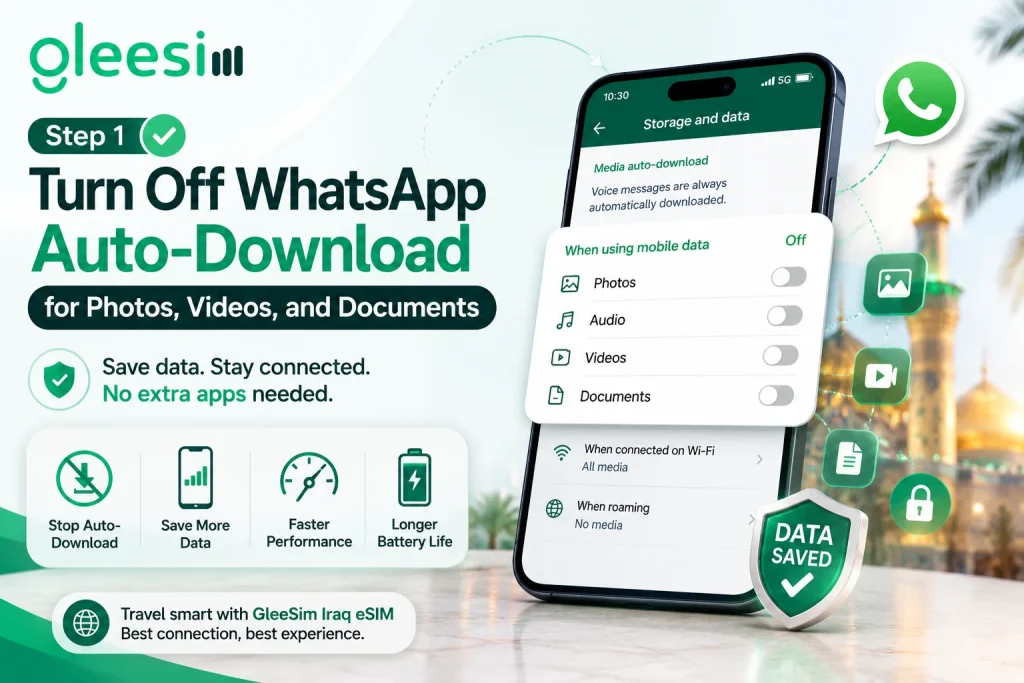
Open WhatsApp, go to Settings, then Storage and Data. Under Media Auto-Download, you will see three sections: When Using Mobile Data, When Connected on Wi-Fi, and When Roaming.
Set all three photo, audio, video, and document toggles under When Using Mobile Data to off. Leave the Wi-Fi settings as they are. Your media will now only auto-download when you are on a Wi-Fi connection at your accommodation.
Open WhatsApp, tap the three-dot menu at the top right, go to Settings, then Storage and Data, then Media Auto-Download.
Under When using mobile data, untick Photos, Audio, Videos, and Documents. Tap OK to save. Done.
From this point forward, media arrives as a grey placeholder with a download button. You tap only what you actually want to see. Everything else stays un-downloaded until you choose it.
Data saved: A single WhatsApp group with active photo sharing can consume 30 to 80 MB per day on auto-download. A fifty-person pilgrimage group at the same rate would consume 150 to 300 MB per day before you send a single message yourself. Turning this off costs you nothing except a tap to download what you want.
WhatsApp voice calls are one of the most reliable ways to reach family during Arbaeen congestion. They use less bandwidth than a standard cellular voice call. But they can still be optimised further.
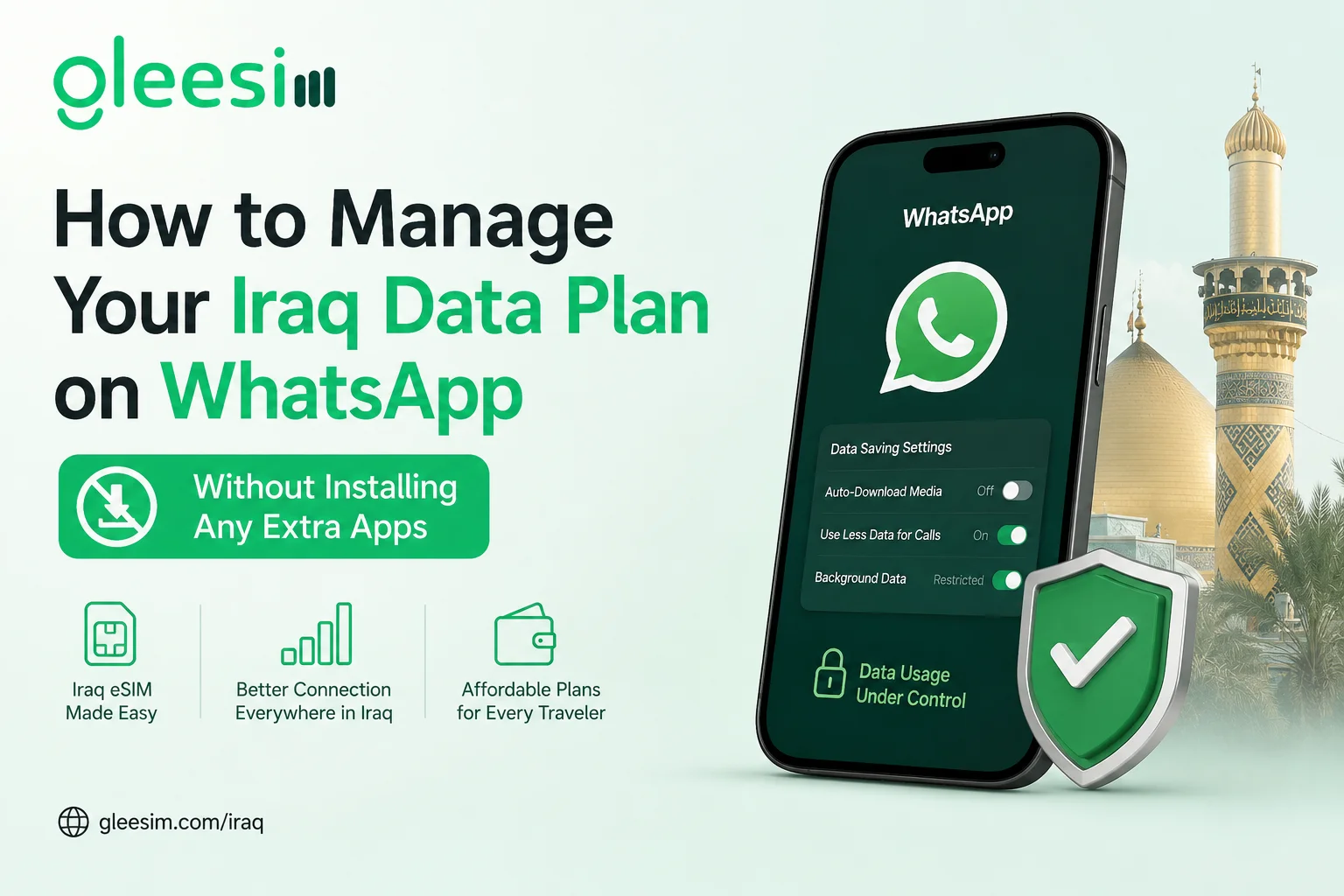
Open WhatsApp, go to Settings, then Storage and Data. Find the option labelled Use Less Data for Calls and toggle it on.
This activates a compressed audio codec for all WhatsApp voice calls, reducing per-minute data consumption by roughly 30 to 40 percent. Call quality drops very slightly. Clarity is still more than sufficient for a voice conversation. Worth it every time on a limited bundle.
| Call Type | Approximate Data per Minute | Notes |
| WhatsApp call (standard) | 0.5 to 1.0 MB | Default setting |
| WhatsApp call (low data mode) | 0.3 to 0.6 MB | Recommended for Iraq travel |
| WhatsApp video call | 3 to 8 MB | Avoid on limited bundles |
| Standard cellular voice call | 0 MB (uses call minutes) | Only if your plan includes calls |
For a pilgrim making five ten-minute WhatsApp calls per day, low data mode saves roughly 25 to 35 MB daily. Over a seven-day Ziyarah trip, that is 175 to 245 MB of preserved data without touching a single extra app.
WhatsApp refreshes in the background even when you are not using it. It checks for new messages, updates notification counts, and occasionally syncs media. This background activity uses data silently.
You can restrict it without disabling WhatsApp entirely.
Go to Settings, then General, then Background App Refresh. Find WhatsApp in the list and toggle it off. WhatsApp will still work normally when you open it. It simply will not consume data when the screen is off.
Alternatively, go to Settings, then WhatsApp, then Mobile Data, and toggle off Background App Refresh directly on WhatsApp’s settings page.
Go to Settings, then Network and Internet (or Connections on Samsung), then Data Usage, then App Data Usage. Find WhatsApp, tap it, and toggle off Background Data.
Some Android versions label this differently. Look for Restrict Background Data or Background Data as a toggle within the WhatsApp entry under data settings.
Important: On Android, some versions of WhatsApp will still deliver notifications after background data is restricted because notifications route through a different system channel. You will receive messages when you open the app, and typically still receive notification pings. Test this on your specific device before relying on it during travel.
USSD codes are short-code commands you dial like a phone number. They connect directly to your carrier’s system and return information or actions via a text pop-up on your screen. No app. No internet connection required. They work even when your data bundle has expired.
| Action | Code to Dial |
| Check data balance | *114*2# |
| Check all balances (credit + data) | *114# |
| Buy data bundle (opens bundle menu) | *141# |
| Check active subscriptions | *121# |
| Action | Code to Dial |
| Check data balance | *104*2# |
| Check credit balance | *102# |
| Buy data bundle | *100# |
| Customer service | 104 (call) |
| Action | Code to Dial |
| Check data balance | *135# |
| Check credit balance | *130# |
| Buy data bundle | *131# |
These codes work on any phone, any operating system, and require zero internet data to use. If your bundle runs out at 2am in Karbala and the local dealer is closed, dialling *141# on Asiacell or *100# on Zain opens a bundle purchase menu directly from your SIM, paid from your credit balance.
SMS alternative for Asiacell: Send the text BAL to 1414 to receive your balance via SMS without any internet access at all.
| Method | Internet Required | Works on Expired Bundle | Speed | Language |
| USSD code | No | Yes | Instant | Arabic (some English) |
| Carrier SMS command | No | Yes | Under 1 minute | Arabic |
| Operator website | Yes | No | Varies | Arabic/English |
| Carrier app | Yes (for download) | No | Varies | Arabic primarily |
For pilgrims travelling in Iraq, USSD is the clear winner for anything balance-related or bundle-purchase-related. It works when your data is gone, it works in poor signal areas (as long as you have any cellular connection at all), and it requires no English-language interface to navigate.
Download the carrier app before travel only if you want English-language account management. Asiacell’s app has partial English support. Zain Iraq’s app is primarily Arabic. Neither app is worth the bandwidth to download once you are in-country on a limited bundle.
Yes, though the setup varies by carrier and the options are more limited than in some markets.
Asiacell: You can request automatic SMS alerts when your data drops below a threshold by contacting Asiacell customer service on 114 (free call from an Asiacell SIM). Ask specifically for a low-balance notification to be set on your account. This is a manual setup at the carrier level, not an in-app toggle.
Zain Iraq: Zain sends automatic SMS notifications when your bundle is nearly exhausted (typically at 80 percent and 100 percent consumption). These arrive without any setup required on your part. They are in Arabic, but the key numbers in the message are clear enough to understand regardless of language.
Korek: Data consumption alerts are primarily available through the Korek app and are not consistently available via SMS for prepaid accounts.
The alternative with no setup at all: Both iPhone and Android have built-in data usage warnings that work independently of your carrier.
On iPhone: go to Settings, then Mobile Data, then Mobile Data Options, and set a usage limit using the reset cycle tool. On Android: go to Settings, then Network, then Data Usage, and set a warning threshold. Both alert you when you cross a limit you define, using zero data to do so.
This is a question worth answering directly rather than vaguely.
Android Data Saver is a system-level setting that restricts background data for all apps simultaneously, not just WhatsApp. It does not affect foreground data usage (what happens when you are actively using an app).
WhatsApp Low Data Mode is an in-app setting specific to WhatsApp that reduces the audio codec quality during calls and can be combined with the auto-download controls above.
| Setting | Affects Background Data | Affects Call Quality | Affects Media Downloads | Requires Setup In |
| Android Data Saver | Yes (all apps) | No | No (must set separately) | Android Settings |
| WhatsApp Low Data Mode | No | Yes (calls only) | No (must set separately) | WhatsApp Settings |
| WhatsApp Auto-Download Off | No | No | Yes (direct impact) | WhatsApp Settings |
| Restrict WhatsApp Background Data | Yes (WhatsApp only) | No | No | Android or iPhone Settings |
The answer: they do different things and work best together. Enable Android Data Saver (or iPhone Low Data Mode under Battery settings) for system-wide background control, then use WhatsApp’s own settings for call and media optimisation. Neither replaces the other. Both together give you the maximum savings without installing a single additional app.
Pilgrims share a lot during Ziyarah. Shrine photos. Video clips of processions. Audio recitations. Understanding what each format actually costs helps you decide what to share on data versus what to save for Wi-Fi.
| Content Type | Approximate Data per Item | Notes |
| WhatsApp text message | Near zero (under 1 KB) | Negligible at any volume |
| WhatsApp audio message (1 min) | 0.5 to 1 MB | Most efficient for voice sharing |
| Photo (WhatsApp compressed) | 100 to 300 KB | WhatsApp compresses automatically |
| Photo (original quality) | 2 to 8 MB | Avoid on limited bundles |
| Video (30 seconds, compressed) | 3 to 8 MB | High cost, save for Wi-Fi |
| Video (30 seconds, original) | 15 to 50 MB | Never send on mobile data |
| WhatsApp Status view | 1 to 5 MB per status | Limit status browsing on data |
The practical rule for Iraq travel: Send compressed photos freely. Use audio messages instead of video for anything you want to share in the moment. Save video sharing entirely for Wi-Fi at your accommodation. WhatsApp compresses photos automatically unless you select the Document option for sending originals, so standard image sharing is already reasonably efficient.
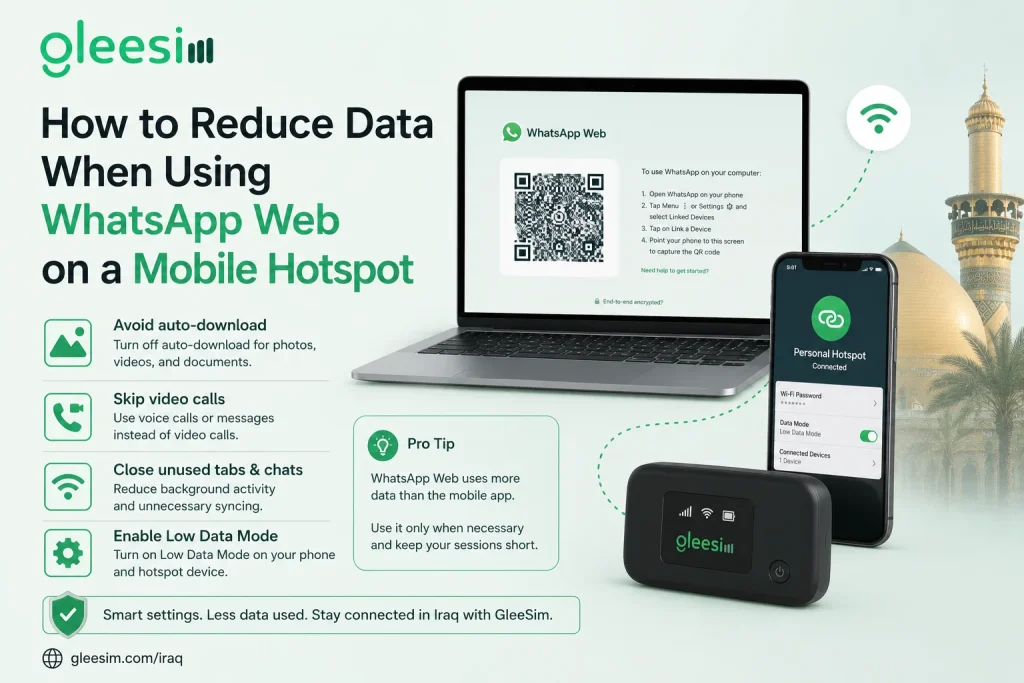
Some pilgrims use their phone as a mobile hotspot for a laptop or tablet, then access WhatsApp Web on the larger screen. This setup can consume data at a significantly higher rate than phone-only WhatsApp use.
Why it uses more data: WhatsApp Web on a browser often loads media at higher resolution than the mobile app. Browser-side auto-play of videos and voice notes is also more aggressive than the mobile app’s compressed defaults.
How to control it without any additional app:
First, apply all the WhatsApp mobile app settings above (auto-download off, low data mode on). These affect what WhatsApp Web can load because WhatsApp Web mirrors your phone’s app, not an independent source.
Second, in your browser (Chrome, Firefox, or Safari), right-click or long-press any video in WhatsApp Web before it plays. Most browsers offer a Stop Downloading or Block Autoplay option in the media menu.
Third, limit hotspot use to text communication only during active data hours. Reserve WhatsApp Web photo and video browsing for evenings when your accommodation Wi-Fi is available.
How do I stop WhatsApp from automatically downloading photos and videos on Android and iPhone?
On both platforms, go to WhatsApp Settings, then Storage and Data, then Media Auto-Download. Under When Using Mobile Data, untick all media types. This stops all automatic downloads over your Iraqi data bundle. Media will only download when you tap it directly.
What are the USSD codes to check and buy data bundles from Zain, Asiacell, and Korek?
Dial *114# on Asiacell for balance and bundle options. Dial *104*2# on Zain Iraq for data balance, or *100# for the bundle purchase menu. Dial *135# on Korek for data balance. All codes work without any internet data and function even on an expired bundle as long as you have a cellular signal.
How do I enable WhatsApp’s low data usage mode for calls?
Open WhatsApp, go to Settings, then Storage and Data, and toggle on Use Less Data for Calls. This reduces audio codec quality slightly and cuts call data consumption by roughly 30 to 40 percent. It works identically on iPhone and Android.
How do I restrict background mobile data for WhatsApp without a third-party app?
On iPhone, go to Settings, then WhatsApp, then Mobile Data, and turn off Background App Refresh. On Android, go to Settings, then Data Usage, find WhatsApp, and toggle off Background Data. Both methods use only tools built into your phone.
Can I receive data usage alerts from Iraqi carriers without installing their app?
Zain Iraq sends automatic SMS alerts at 80 percent and 100 percent bundle consumption without any setup. Asiacell can be configured for SMS alerts by calling 114 and requesting the service from customer support. For a carrier-independent solution, set a data usage warning inside your phone’s native settings under Mobile Data or Data Usage, which alerts you at any threshold you choose.
Here is something worth knowing if you are travelling to Iraq with a GleeSim Iraq eSIM.
Every tip in this article applies fully to a GleeSim eSIM. The WhatsApp auto-download controls, the low data mode, the background data restriction, and the phone-level data alerts all work identically whether your data line is a local Iraqi SIM or a GleeSim international eSIM.
What makes GleeSim different is that the eSIM itself is managed through WhatsApp. Checking your remaining data, topping up your bundle, getting support if something is not working: all of it happens inside the same WhatsApp interface you are already using to message your family and your caravan group. There is no carrier app to install, no USSD code to memorise, and no Arabic-language menu to navigate. Just a WhatsApp conversation with GleeSim that handles your connectivity from the moment you activate to the moment you land back home.
GleeSim was built on the understanding that pilgrims should be focused on their journey, not on telecom management. Handling everything through WhatsApp is not just a feature. It is the entire point.
Browse Iraq data plans and activate yours before your trip at offers.gleesim.com/iraq.
For pilgrims who are also managing work or a small business remotely during their trip, WhatsApp Business (or a heavy personal WhatsApp volume) adds another layer of data pressure.
A few simple rules keep business communication manageable on a limited Iraqi bundle.
Set a WhatsApp Business away message before you travel, informing contacts that responses may be delayed. This reduces the social pressure to reply immediately to every message, which in turn reduces how often you open WhatsApp and trigger background syncs.
Use WhatsApp’s starred messages feature to flag critical business threads before you depart. You can check just those conversations on data and leave the rest until Wi-Fi.
Schedule media-heavy communications (invoice photos, document attachments, product images) for your accommodation Wi-Fi window each evening rather than sending over mobile data throughout the day.
Mute non-urgent group chats for the duration of your trip. Go into each group, tap the group name, and select Mute Notifications. You can still check these groups manually when on Wi-Fi without them consuming background data or interrupting your pilgrimage hours.
This guide reflects settings and features available on current versions of WhatsApp for Android and iPhone. Menu locations may vary slightly by operating system version. USSD codes are based on publicly available carrier information and may be updated by operators without notice. Always verify current bundle and balance codes with your carrier before travel.